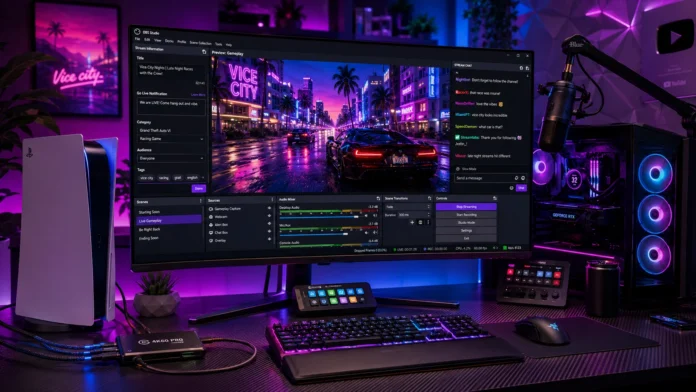
When the highly anticipated multiplayer servers launch globally, broadcast platforms will face an unprecedented tidal wave of viewers eager to explore Vice City. If you intend to build an audience around Rockstar’s latest masterpiece, launching a high-fidelity broadcast from day one is your path to viral growth. Because the RAGE 9 engine pushes incredibly dense environments, detailed ray-tracing, and high-contrast neon lighting systems, learning how to stream GTA 6 PS5 setups properly is the only way to avoid pixelated, blurry broadcasts. Ultimately, relying on basic console compression tricks will make your stream look incredibly amateur compared to the competition. For instance, using the console’s internal broadcast app completely throttles your ability to add custom overlays, alert boxes, and high-end microphones. Alternatively, processing your gameplay through a dedicated hardware capturing pipeline completely preserves the visual fidelity your audience expects. Therefore, upgrading your setup before launch day ensures you capture maximum viewership without technical hitches. Today, we break down the ultimate layout to prepare your channel for the State of Leonida.
Navigating the hardware landscape of modern creator gear can easily overwhelm up-and-coming broadcasters. Furthermore, configuring complicated layouts inside open-source broadcast software like OBS Studio frequently results in dropped frames or audio desynchronization if done incorrectly. Specifically, gamers are actively hunting for an optimized stream GTA 6 PS5 capture card Twitch YouTube 2026 checklist to eliminate latency entirely. Consequently, balancing your hardware choice with your physical setup—whether you use a laptop or a dedicated dual-PC rig—dictates your broadcast’s overall stability. For example, internal PCIe cards offer the lowest possible hardware delay for desktop users. Meanwhile, external plug-and-play USB boxes provide unrivaled flexibility for creators streaming from MacBooks or compact spaces. To help you deliver a flawless 1080p or 4K broadcast on night one, our technical team has tested and reviewed the best capturing gear on the market.
Broadcast Like a Professional Creator
First, we will explain why the PlayStation 5’s internal “Share” button is a massive trap for serious channels looking to grow. Next, our guide highlights the absolute best hardware options, from internal powerhouses to highly portable external boxes. In addition, this article provides the exact video encoding specs you need to eliminate macroblocking during high-speed vehicle chases. To guarantee your capturing pipeline arrives safely before launch week, fast-access Amazon links are provided below. Simply use them to secure your gear and finish your studio configuration.
Ultimately, figuring out how to stream GTA 6 PS5 broadcasts at a professional standard requires routing your console’s video output through a high-end dedicated capture card into a computer running OBS Studio. In particular, desktop PC owners should opt for the zero-latency Elgato 4K60 Pro MK.2 internal card. Furthermore, laptop or Mac users should deploy the highly flexible Elgato HD60 X external capture box. Moreover, to completely avoid pixelation during high-speed Vice City police chases, you must stream using an optimized x264 or NVIDIA NVENC encoder setup at a constant bitrate of at least 6,000 Kbps to Twitch, or up to 15,000 Kbps if you are broadcasting in native 4K on YouTube.
The Internal Share Button vs. Dedicated Hardware
The PlayStation 5 features a built-in streaming app accessible directly from your DualSense controller. While this feature is fantastic for showing gameplay to a few friends, it is completely inadequate for growing a professional channel. The console’s internal encoder uses a heavily restricted variable bitrate, which means the second you start driving fast through crowded city streets, your stream compressed into a blocky, unwatchable mess.
Additionally, the internal app locks you out of the critical tools needed to build a modern community. You cannot add custom alerts, stream labels, countdown timers, or interactive widgets that keep viewers engaged. By routing your console into a computer via dedicated hardware, your PC takes over the processing burden. This allows your console to focus entirely on rendering the game smoothly while your computer handles a flawless, overlay-rich broadcast stream.
The Desktop King: Elgato 4K60 Pro MK.2
If you use a dedicated desktop gaming computer alongside your console, an internal PCIe capture card is the absolute gold standard. The Elgato 4K60 Pro MK.2 slots directly into an available slot on your motherboard, providing a massive advantage: near-zero hardware latency.
Because the video signal travels straight through your motherboard’s data lanes, you can literally play the game inside your OBS Studio preview window without any noticeable delay. Furthermore, the 4K60 Pro features built-in hardware HDR-to-SDR tone mapping. This critical feature allows you to play the game on your television in jaw-dropping 4K HDR, while the card automatically converts the video feed to a standard SDR format for Twitch or YouTube, completely preventing washed-out broadcast colors.
The Flexible Choice: Elgato HD60 X
For creators who broadcast using a laptop, a Mac, or a compact workstation, opening up a computer tower is out of the question. The Elgato HD60 X is an external, pocket-sized capture box that handles next-generation console features flawlessly.
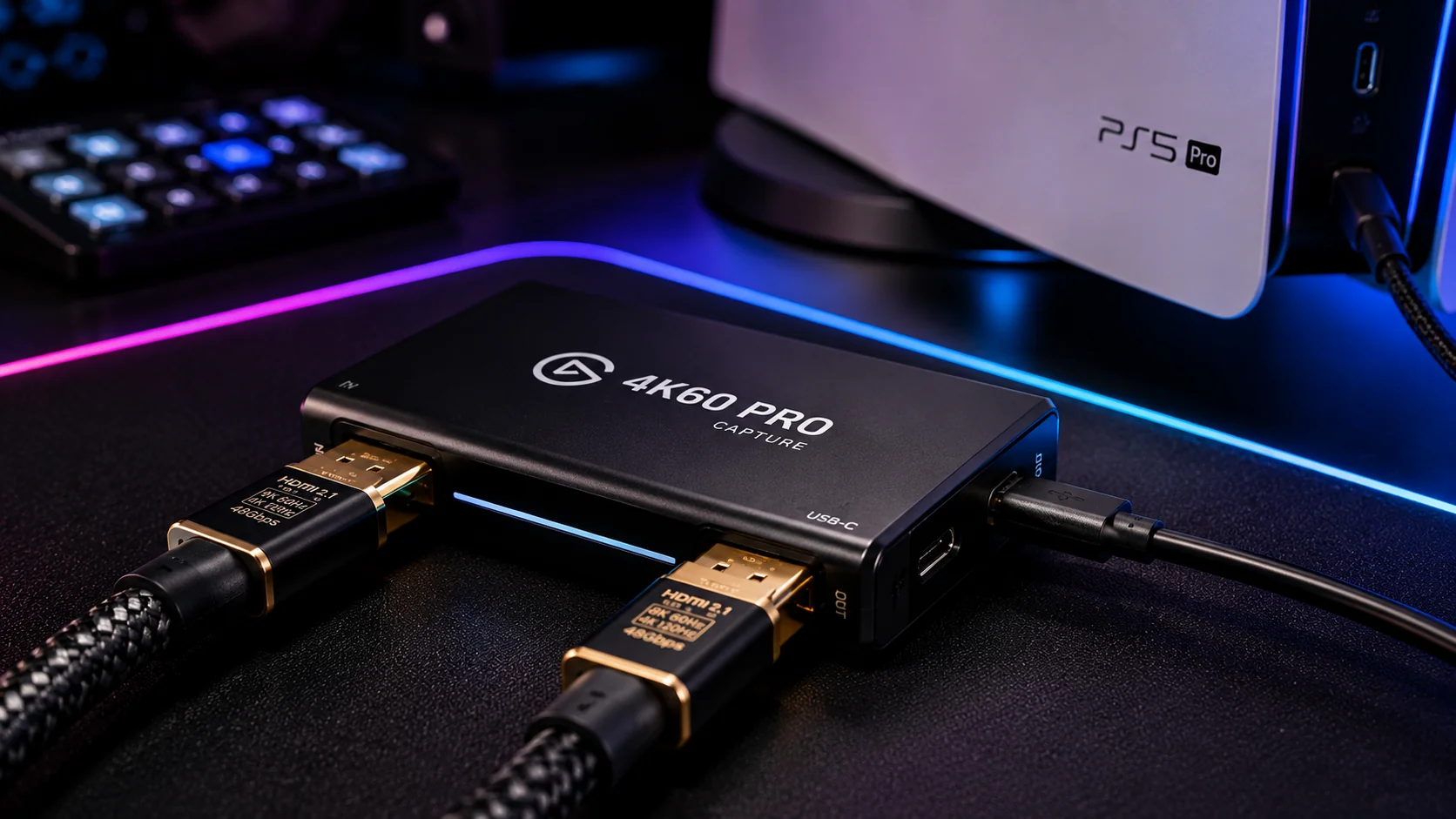
The standout feature of the HD60 X is its full compatibility with Variable Refresh Rate (VRR) passthrough. When you plug your console into the input port and your television into the output, you can still enjoy ultra-smooth, screen-tear-free gameplay on your monitor. Meanwhile, the box sends a clean, uncompressed 1080p at 60 frames per second video feed straight into your computer via a standard high-speed USB 3.0 port. It is the ultimate balance of simplicity and visual quality.
The Value Alternative: AVerMedia Live Gamer 4K
If you want the absolute ultra-low latency advantages of an internal PCIe hardware installation but want to save a significant chunk of change, AVerMedia is a phenomenal option. The AVerMedia Live Gamer 4K matches the feature set of elite cards at a much better value.
This internal card captures up to 4K at 60fps HDR flawlessly while supporting blazing-fast passthrough frame rates up to 240Hz at 1080p if you decide to hook up your gaming PC later. It includes custom programmable RGB lighting zones across the physical shroud, letting you synchronize the card’s color pattern with the ambient neon lights of your room. It is a bulletproof, high-speed solution for multi-platform creators.
Comparing the Top Streaming Gear
Choosing your capturing hardware depends on your primary computer type and your display expectations. Here is exactly how the three market leaders stack up in 2026.
Before plugging your console into any hardware capture card, you must completely disable HDCP (High-bandwidth Digital Content Protection). Navigate to your console’s System Settings, look for the HDMI menu, and flip the HDCP toggle off. If you ignore this step, your computer screen will display a permanent black screen due to copyright flags meant for Netflix.
Optimized OBS Settings for Vice City
Once your physical setup is securely wired, configuring your broadcast software parameters is the final step. Because open-world driving games feature constantly moving pixels, utilizing a weak compression setting will completely ruin your stream quality. Use these optimized metrics inside your settings menu:
- Rate Control: CBR (Constant Bitrate) is mandatory to prevent audio sync issues.
- Twitch Bitrate Sweet Spot: 6,000 Kbps to 8,000 Kbps at a resolution of 1080p at 60fps.
- YouTube Bitrate Sweept Spot: 12,000 Kbps to 15,000 Kbps if your internet allows you to push 1440p or 4K streams.
- Keyframe Interval: Set this exactly to 2 seconds to match live platform ingest requirements.
- Preset Profile: Set to Quality or High Quality depending on your computer’s cooling capacity.
The Final Verdict on Your Broadcast
In conclusion, treating your stream layout as a basic afterthought will guarantee you get buried under the massive pool of launch day channels. Undoubtedly, thousands of creators will attempt to broadcast Vice City the exact second it launches. For absolute audience retention, investing in standalone, high-performance hardware separates professionals from casual hobbyists.
However, simply owning an elite capturing card is only half the battle. Most importantly, taking the time to test your bitrate limits and balance your audio channels weeks before November ensures you won’t suffer from catastrophic stream crashes on the most critical night of your content creation journey.
Therefore, audit your desktop setup or laptop ports immediately. Waiting until release night to realize your USB port is too slow or that your motherboard lacks an open slot is a recipe for channel failure. Secure your professional capture card today, map your layout, and prepare to show Leonida to the world in absolute crystal-clear quality.
Frequently Asked Questions — Streaming Setup Guide
Can I stream to Twitch directly from my console without a PC?
Do I need an internal or external card if I use a laptop?
Will a capture card affect my TV’s frame rate or VRR?
What internet upload speed do I need to stream flawlessly?
Why does my stream screen turn black when I launch apps?

