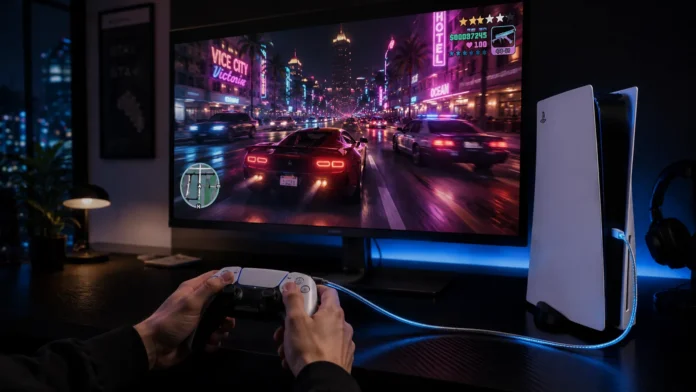
Nothing shatters the immersion of a high-speed getaway through Vice City quite like input lag. You press the trigger to drift around a corner, but your car reacts a fraction of a second too late, sending you crashing into a neon storefront. Because Rockstar Games pushes the RAGE engine to its absolute limits, Grand Theft Auto 6 is an incredibly heavy game. If your hardware is not perfectly synchronized, you will experience frustrating latency and sluggish framerates.
Input lag is the delay between pressing a button on your DualSense controller and seeing that action happen on your screen. While some players mistake this for slow internet or a glitchy game, 90% of the time, the delay is caused by improper television and console configurations. In this performance guide, we outline the ultimate GTA 6 PS5 lag fix protocol to ensure your gameplay is razor-sharp and ultra-responsive.
To apply the ultimate GTA 6 PS5 lag fix, you must change three critical settings: First, enable “Game Mode” on your TV or monitor to disable post-processing. Second, switch your PS5 controller connection method to “Use USB Cable” in the accessories menu. Finally, open the GTA 6 pause menu and change your graphics setting to “Performance Mode” to unlock 60 FPS.
The Biggest Culprit: Your TV Settings
Modern 4K televisions are packed with “smart” features that make movies look incredible. Features like motion smoothing, noise reduction, and cinematic color grading take time for your TV’s internal processor to apply. This processing time creates massive input delay when gaming.
| Display Setting | What It Does | Required Action for GTA 6 |
|---|---|---|
| Game Mode | Bypasses cinematic post-processing | Turn ON (Crucial) |
| Motion Smoothing (Soap Opera Effect) | Fakes extra frames for movies | Turn OFF entirely |
| VRR (Variable Refresh Rate) | Matches TV refresh rate to PS5 output | Turn ON (via PS5 Settings) |
| ALLM (Auto Low Latency) | Forces TV into fastest response mode | Turn ON (via PS5 Settings) |
The Controller Connection: Wireless vs Wired
By default, even if you plug your DualSense controller into your PS5 to charge it, the controller is still communicating with the console via Bluetooth. In a living room filled with Wi-Fi routers, smartphones, and smart home devices, Bluetooth frequency interference can cause noticeable input lag and dropped inputs.
Force USB Communication
- Step 1 Plug your DualSense into the PS5 via USB-C.
- Step 2 Go to PS5 Settings > Accessories > Controller (General).
- Step 3 Select “Communication Method.”
- Step 4 Change from “Use Bluetooth” to “Use USB Cable.”
Invest in a High-Speed Data Cable
To utilize this fix without sitting two feet from your television, you need a long, premium USB-C cable. Do not use a cheap gas-station charging cable, as they often lack the data pins required to transmit your controller inputs. You need a cable explicitly rated for high-speed data transfer.
In-Game Settings: Fidelity vs Performance
Rockstar Games gives you control over how the console renders the state of Leonida. If you feel a “heavy” or sluggish delay when panning the camera around, it is likely because you are playing at 30 frames-per-second.
The 60 FPS Solution
- Fidelity Mode Native 4K, beautiful ray tracing, locked at 30 FPS. (High Input Lag)
- Performance Mode Dynamic 1440p/4K, reduced shadows, targets 60 FPS. (Lowest Input Lag)
If your television supports HDMI 2.1 and VRR (Variable Refresh Rate), navigate to your PS5 Display Settings and enable it. VRR allows the console to output frames exactly as they are rendered. This completely eliminates screen tearing and makes even minor framerate drops in GTA 6 feel buttery smooth and completely unnoticeable.
PS5 System Maintenance: Clearing the Cache
If you have had your PS5 for years, the system’s cache can become bloated, leading to micro-stutters and sudden freezes while driving at high speeds through Vice City. Rebuilding your database reorganizes the SSD for optimal asset streaming.
✅ How to Rebuild PS5 Database:
- Turn your PS5 completely off (not Rest Mode).
- Press and hold the power button on the console until you hear a second beep (about 7 seconds).
- Connect your controller via USB cable and press the PS button.
- Select “Clear Cache and Rebuild Database” from the Safe Mode menu.
Final Thoughts
You do not have to accept sluggish controls as the standard console experience. By forcing your television into Game Mode, wiring your controller directly to the motherboard, and sacrificing a few pixels for the fluidity of Performance Mode, you can strip away the latency. Apply these fixes, and your shootouts in Vice City will feel instantly sharper.
Frequently Asked Questions — Performance
Is input lag the same thing as internet lag (ping)?
Does having a full hard drive cause GTA 6 to lag?
Does the PS5 DualSense Edge reduce input lag?